Up next in 10


DJI Mini 5 Pro Video Settings - Camera
Show More Show Less View Video Transcript
0:01
In the camera tab of settings, the menu
0:03
is context sensitive. Since we have
0:06
selected video in the video photo menu,
0:08
all the items in the camera tab will
0:10
relate to filming.
0:14
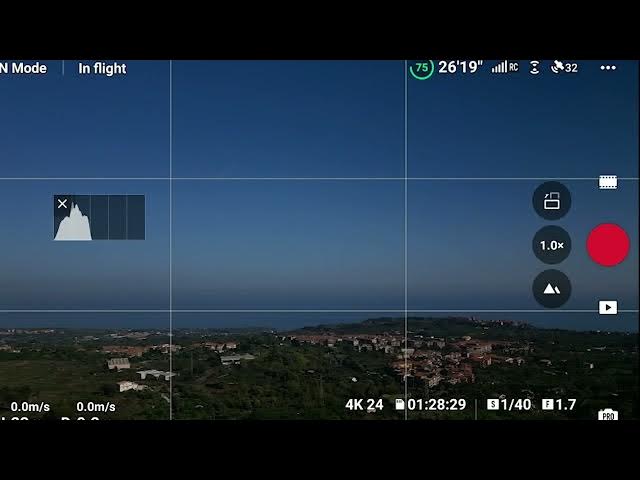
The histogram is the only tool I use for
0:16
exposure. Therefore, I have it on all
0:19
the time. I always leave some space
0:22
between the last bar to the right and
0:23
the right edge of the histogram to
0:25
prevent burning the highlights.
0:29
If the bars are bunched up against the
0:31
left edge and there is plenty of space
0:33
to the right, the image is underexposed
0:36
and we should increase the luminosity.
0:38
However, there is more tolerance for
0:41
underexposed shadows as they can be
0:43
recovered while editing while
0:45
overexposing highlight should be avoided
0:48
at all costs.
0:51
If bar touch both the left and right
0:54
edge, we are in a high dynamic range
0:56
situation.
1:01
Further down, we can overlay grid lines.
1:04
I find it useful to add the one in the
1:06
middle to apply the rule of thirds.
1:09
When filming with drones, we often have
1:12
the horizon line in the frame. Rather
1:14
than having it in the middle, it is more
1:16
interesting to divide the scene into
1:18
thirds and have it either on the upper
1:21
or the lower third.
1:24
On other occasions, especially for top-
1:26
down shots, we might want a symmetric
1:28
framing, in which case the same overlay
1:31
helps position this object.
1:35
The option style presents two sliders to
1:37
adjust sharpness and noise. I set them
1:40
to minus one or minus two as I find the
1:43
standard setting to oversharpen the
1:45
image and apply too much noise
1:47
reduction.
1:52
To reduce noise, I use the excellent the
1:54
Noiser Nit video when needed. You will
1:57
find info about it in the description
1:59
below. You can watch my video about NIT
2:01
video by clicking on the link above.