live_tv
Livestream Starting Soon
00
Hours
:
00
Minutes
:
00
Seconds
Up next in 10


DJI Mini 5 Pro Settings - Camera Tab
Show More Show Less View Video Transcript
0:00
Most functionality for photography are
0:02
located in the camera tab. The first
0:05
option is the file format. We can choose
0:08
to save the photos in JPEG, RAW or both
0:11
formats.
0:13
Then we can select the size of the
0:14
image. With 4x3, we get the full
0:17
resolution of the sensor 4032x
0:21
3024 pixels, slightly more than 12
0:24
megapixel.
0:25
If we choose 16x9, we get a cropped
0:28
version to fit the traditional 4K
0:31
landscape video format.
0:34
I prefer 4x3 to take advantage of the
0:37
full resolution for reframing or
0:39
cropping.
0:41
Further down, we can select the
0:43
resolution between 12 megapixel and the
0:45
50 megapixel mode. I will do a specific
0:49
video about the 50 megapixel mode with a
0:51
Mini 5 Pro as it would take too much
0:53
time to analyze it in this one.
0:57
I suggest subscribing to my channel and
0:59
hitting the notification bell to be
1:01
informed.
1:03
The next item turns the Instagram on and
1:06
off. I keep it always on as it is the
1:09
main tool I use for exposure.
1:12
To avoid overexposure, I leave some room
1:14
between the last bar to the right and
1:16
the right edge.
1:19
Picking level is a tool for focusing.
1:22
He outlines in red the element in focus,
1:25
but only when using manual focus. I only
1:28
use it when focusing manually on a
1:30
subject close to the camera, but
1:32
withdrawn on most occasion we leave it
1:34
off.
1:35
The next option, overexposure warning,
1:38
is another tool for exposure. It
1:40
overlays white stripes on the
1:42
overexposed areas. I never use it as I
1:46
find it distracting.
1:49
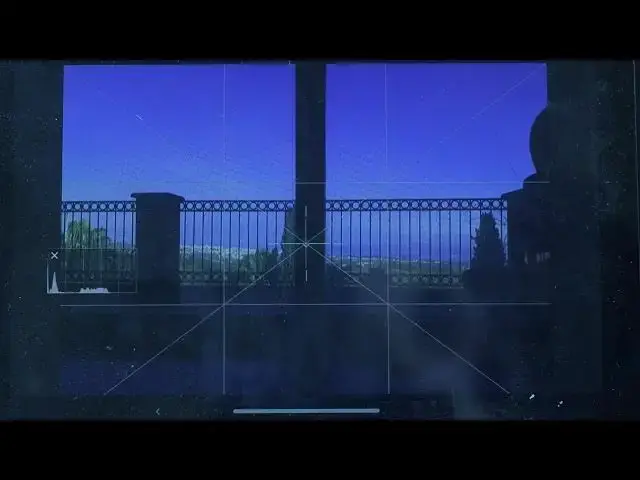
Further down, we can overlay grid lines.
1:52
I generally use the one in the middle to
1:54
apply the rule of thirds.
1:57
With drone, we often have the horizon
1:59
line in the frame.
2:01
Rather than having it in the middle, it
2:03
is more interesting to divide this scene
2:05
into thirds and place it either on the
2:08
upper or lower third.
2:11
On other occasions, especially for top-
2:13
down shots, we might want a symmetric
2:16
framing, in which case the same overlay
2:18
helps position the subject.
2:22
The function style to adjust sharpness
2:24
and noise reduction is not available for
2:26
photo as it is supplied only for video.
2:32
But I don't really miss it as the
2:34
program I use for editing and organizing
2:36
photos. Luminar Neo has excellent tools
2:40
for sharpness control and noise
2:41
reduction.