Up next in 10


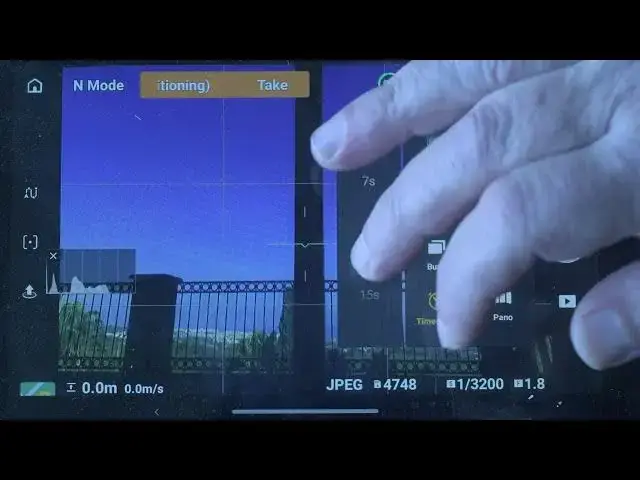
DJI Mini 5 Pro - Photo Video Menu
Show More Show Less View Video Transcript
0:00
We access the photo video menu via the
0:02
bottom above the shutter on the right of
0:05
the screen. On the menu on the left
0:07
after single shot, there is an icon for
0:09
automatic exposure bracketing with a
0:11
choice of three, five or seven images.
0:14
This is useful in a dynamic range
0:16
situations to merge the photos in HDR
0:19
and reduce the difference luminosity
0:21
between the highlights and the shadows.
0:23
I use the merge to HDR functionality in
0:26
Luminar Neo with excellent results.
0:29
I often take photos with AAB set to
0:33
three or five images to be sure to
0:36
always have a perfect exposure.
0:39
Then time shot to take several images at
0:42
a specific interval in seconds, which is
0:45
useful for selfies after hiding a remote
0:48
controller.
0:50
Finally, burst with a choice of up to
0:52
seven shots for sports and action.
0:56
In the right part of the menu, we access
0:58
different shooting modes, including
1:00
panorama and hyperlapse.
1:03
To the left of the shutters, there are
1:04
three buttons. The one at the top is to
1:06
rotate the camera from landscape to
1:09
portrait orientation to take vertical
1:11
photos at full resolution. A big plus
1:14
for social media users.
1:17
The button below enables one of the main
1:19
new feature of the Mini 5 Pro, the 48
1:22
megapixel Met mode.
1:26
Thanks to the larger sensor, the camera
1:28
can produce images at two times zoom
1:31
with minimal loss of detail resolution
1:34
close to the quality of a second
1:36
dedicated lens.
1:38
We can also drag the icon to get a
1:40
progressive zoom up to three times.
1:43
There will be a loss of resolution, but
1:45
I find it useful for inspections.
1:48
Further down, there is a button to
1:50
toggle between auto and manual focus to
1:53
be used only when the target is very