Up next in 10


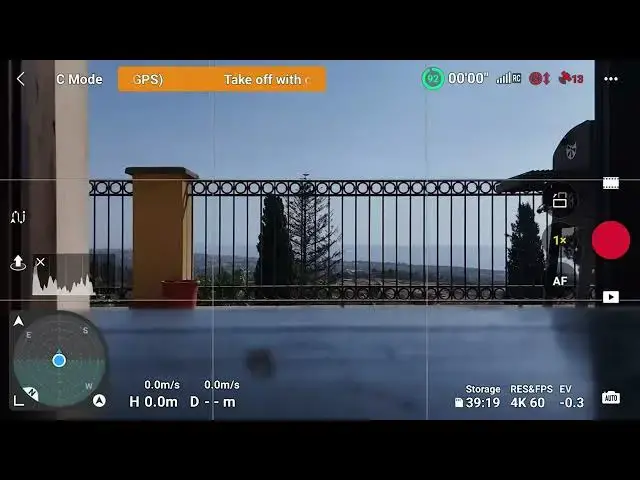
DJI Fly app top of the screen
Show More Show Less View Video Transcript
0:01
on the top left an icon shows the
0:03
current speed mode C normal or sport
0:07
they're selected using the switch in the
0:09
middle of the
0:11
controller to the right a display shows
0:13
technical warnings about the aircraft
0:16
the signal transmission or restricted
0:20
zones by clicking on it we get some
0:22
extra details we can also modify the
0:25
return to home altitude the maximum
0:27
altitude and distance and the storage
0:32
location the next icon to the right
0:34
shows the percentage of battery left and
0:36
the estimated remaining flight
0:39
time by clicking on the circle icon we
0:42
get a detailed view of the time left
0:44
until return to home a force landing and
0:47
Battery
0:49
depure the next icon shows the strength
0:51
of the signal white bars indicates an
0:54
excellent signal yellow bar shows that
0:57
the signal has dropped and red Bar's
0:59
poor signal
1:00
generally just before this
1:03
connection the following icon is white
1:06
when the obstacle avoidance sensors are
1:08
active it turns to red when they are not
1:10
active for example when flying in sport
1:13
mode the next icon indicates the number
1:17
of satellite connected before taking off
1:20
it is suggested to wait until at least a
1:22
dozen satellites are connected so that
1:24
the own point is updated in a position
1:27
close to the operator which helps to
1:29
keep track of the aircraft position
#Consumer Electronics
#Drones & RC Aircraft